Custom Macros and Subprograms for Beginners: M98, M99, G65, # Variables, IF and WHILE with Examples and Diagrams
Write it once, then call it again and again with new dimensions. Start with the difference between M98 and G65!

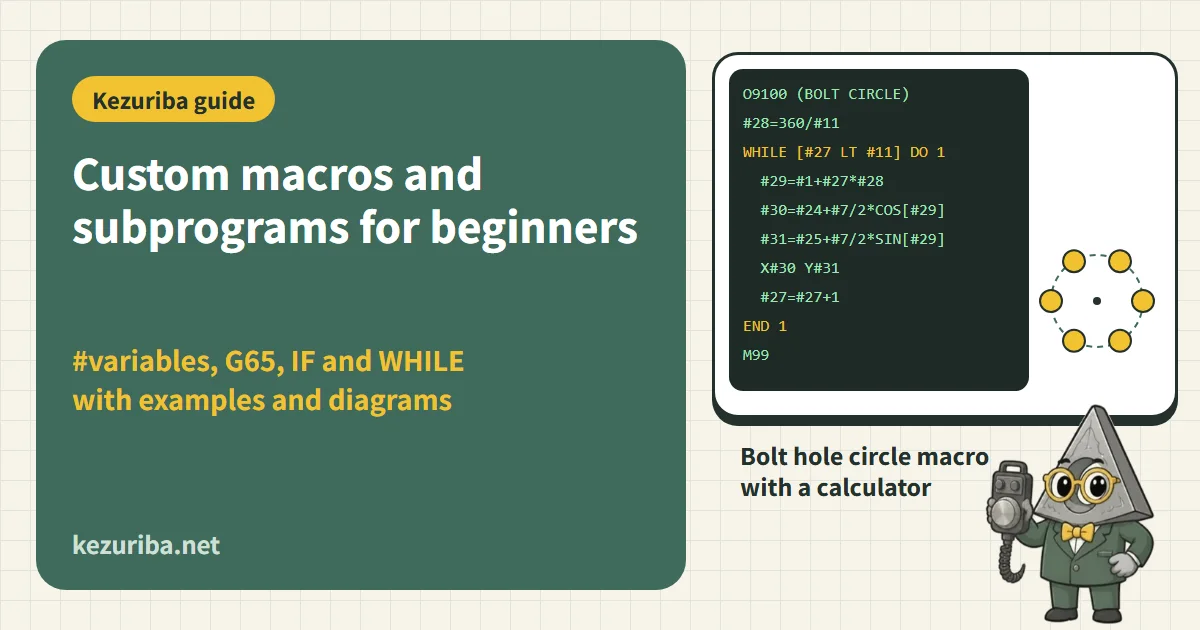
Parts with the same shape but different dimensions, bolt holes spaced around a circle, slots repeated again and again... Are you rewriting these in CAM or by hand every time? An NC has "subprograms" that call and repeat part of a program, and "custom macros" that use variables, arithmetic and conditional branches (some makers call them user macros or Macro B). This article explains M98, M99, G65, # variables, IF and WHILE step by step with motion diagrams and program examples, and at the end lets you try a bolt hole circle macro in a calculator.
What subprograms and macros make easier
- Repeating the same motion: write evenly spaced slots or identical pockets once and call them as many times as needed (subprogram)
- One program for parts in many sizes: pass the diameter, depth and number of holes as "arguments" and cut every model variant with one program (macro)
- Your own canned cycles: turn bolt hole circles, angular patterns, back-and-forth facing and so on into one-line calls like G81[1][6]
- Measuring and tracking: update offsets from probe readings, count parts and stop, count how many times a tool is used[1][10]
Macros are also used in research. Reported examples include a system that feeds dimensions read from a 3D model into macro arguments to generate machining programs without CAM[14], and a method that cuts an asymmetric trapezoidal (buttress) thread with an ordinary grooving insert and a macro instead of a dedicated form tool[15]. Both make use of the great strength of macros: "change the dimensions, and you only change the arguments."
On some NCs, custom macro is an optional feature, and the usable variable range also depends on the machine and options. This article is based on FANUC-compatible syntax (the so-called Macro B), and notes differences between machines as they come up. FANUC's manuals are not publicly available, so the content was checked against public documents from Haas, Siemens (ISO dialect mode), Tornos and others. Always check your own machine's manual before using anything here.
Subprograms: call with M98, return with M99
A subprogram is a block of machining stored under another program number. You call it with M98 , and the M99 at its end returns to the line after the call[4][5].
| Code | Meaning | Differences by machine |
|---|---|---|
| M98 P1100 | Calls O1100 once | — |
| M98 P51100 | Calls O1100 5 times (last 4 digits of P = program number, upper digits = repeat count) | FANUC-compatible syntax. The same in the Siemens ISO dialect mode manual (e.g. M98 P30021 calls program 21 three times)[7] |
| M98 P1100 L5 | Calls O1100 5 times (L = repeat count) | Haas uses this form (L is 1–99)[4] |
| M97 P100 | Calls the block starting at N100 in the same program | Haas local subprogram. Place it after M30 and end it with M99[3] |
| M99 | Returns to the line after the call | In a main program, jumps back to the start and repeats (until reset)[5][12] |
| M99 P50 | Returns to N50 in the calling program | How the return block is searched for (forward or backward) varies by machine[7] |
Example: cutting 5 evenly spaced slots
If you write the subprogram in incremental (G91), it repeats the same motion at a slightly shifted position each time it is called. The key point is to switch back to G90 before returning with M99.
O1000 (MAIN)
G90 G17 G40 G49 G80
G54
T01 M06                (D10 END MILL)
S2000 M03
G00 X0. Y-10.
G43 Z50. H01 M08
Z2.
M98 P51100             (O1100 X5 / HAAS: M98 P1100 L5)
G90 G00 Z50. M09
G91 G28 Z0.
M30

O1100 (SLOT 1 PITCH)
G91 G00 X15.           (15 MM SIDEWAYS)
G01 Z-7. F100          (DOWN 7 MM FROM Z2. TO Z-5.)
Y40. F200              (CUT 40 MM SLOT)
G00 Z7.                (BACK TO Z2.)
Y-40.                  (BACK TO SLOT START)
G90                    (ABSOLUTE AGAIN, THEN RETURN)
M99
Don't return while still in G91If M99 returns while the subprogram is still in G91, the next line of the main program moves in incremental mode and the tool runs to an unexpected position. As in this example, switch back to G90 at the end of the sub, and also write G90 on the first line after the return in the main program for double safety.
Variables: store values in # numbers
In macros, a variable is written as in #1=100. , with "#" and a number; writing X#1 then works as X100. The number range decides the role of each variable.
| Number | Type | Contents / use | Differences by machine |
|---|---|---|---|
| #0 | Null (vacant) | A special variable with no value. Read-only; you cannot assign to it. #1=#0 resets #1 to null | Same on Haas, Tornos and MachMotion[1][8][9] |
| #1–#33 | Local variables | Used only within that program. A G65 call creates a new set that holds the argument values | Siemens ISO dialect mode receives arguments in separate variables $C_A–$C_Z, not #1–#33[7] |
| #100–#199 #500–#999 | Common variables | Every program sees the same value. Used to pass values across calls or to count parts | Whether values survive power-off depends on the machine. Haas keeps both ranges[1], while MachMotion clears the #100s at every startup[9]. The usable range also depends on options |
| #1000– | System variables | Read and write data inside the NC: tool offsets, work coordinates, timers, alarms, etc. | Number assignments vary widely by machine. On Haas, for example, #2001 onward are tool length offsets, #3001 is a millisecond timer and #3011 is the date[1] |
Check that a common variable number is free firstCommon variables such as the #500s may also be used by programs built in by the machine maker, for probing, pallet changing and so on. The Haas manual warns that overwriting the probe calibration values (#550–#599) means the probe must be recalibrated[1]. Before using a new number, check the manual and the variables screen for numbers that are free.
"Null" and "0" are different
When G65 calls a macro, all new local variables are null (vacant), and only the variables matching the addresses written in the call line receive values[1]. In other words, an argument you forgot to write is null, not 0. A null variable used as a coordinate may make the NC ignore that axis command so the axis "does not move", and in a calculation it may be treated as 0 (check your machine's manual for how it is handled). So it is standard practice to begin with a check such as IF [#11 EQ #0] GOTO 900 , testing key arguments for null and stopping with an alarm if they are null, right at the top[10][9].
LinuxCNC (RS274NGC family) has no "null"; arguments you do not pass become 0[11]. If you bring a FANUC-compatible macro over as is, its null checks will not work, so take care.
Calculations: arithmetic and functions
Variables can hold calculated results. The order of operations is set with [ ] (square brackets) (round brackets ( ) mark comments, so they cannot be used). In the Haas example, [3*[9+3]] gives 36[6].
| Code | Meaning | Notes |
|---|---|---|
| #3=#1+#2 - * / | Arithmetic | Multiplication and division first, then addition and subtraction |
| SIN[#1] COS[#1] TAN[#1] | Trigonometric functions | Angles in degrees (not radians)[8][11] |
| ATAN[#1]/[#2] | Arctangent (angle from two values) | Syntax (/ or ,) and result range vary by machine[13] |
| SQRT[#1] ABS[#1] | Square root, absolute value | — |
| ROUND[#1] FIX[#1] FUP[#1] | Round, round down, round up (to an integer) | Rounding of negative numbers differs by implementation (on LinuxCNC, FIX[-2.8] is -3)[11] |
| EQ NE GT LT GE LE | Comparison: =, ≠, >, <, ≥, ≤ | Used in IF and WHILE conditions[1][8] |
| AND OR XOR | Logical operators | Combine conditions[8][13] |
Don't compare decimals for equalityCalculated values can carry tiny errors such as 0.0000001, so EQ may never be true. The Haas manual recommends passing values through ROUND before comparing them[1]. For loop counters, counting in whole numbers is safest.
G65: call a macro with arguments
G65 calls a macro like this: G65 P9100 X0. Y0. D100. H6. , with letter-address arguments attached. P is the program number, L the repeat count, and the values of the other addresses go into local variables[2][1]. Which letter goes into which variable is fixed (argument specification I), and G, L, N, O and P cannot be used as arguments.
Alphabetical order and variable numbers do not line up in places (I = #4, D = #7, H = #11, etc.), which makes them easy to mix up. Writing a comment at the top of the macro on which argument is used for what will help whoever reads it later. The local variables that argument specification I never fills, #10, #12, #14, #15, #16, #27, #28, #29, #30, #31, #32 and #33 , can be used inside the macro to hold intermediate results.
Always put a decimal point on argumentsAn argument without a decimal point may be read in the smallest unit. According to the Haas manual, with metric settings, writing A1 makes #1 not 1 but 0.001 (except for D, E, F, H, L, M, S and T)[1]. In Siemens ISO dialect mode, too, how a value without a decimal point is read depends on machine settings[7]. A1. is the safe way to write it. Always put a decimal point on arguments.
Differences from M98, and G66 (modal call)
- Arguments: G65 can pass them; M98 cannot (use common variables when you need to pass values)[1][7]
- Local variables: G65 makes a new set on each call and restores the old one on return. M98 uses the caller's variables as they are[1]
- G66: G66 P_ (arguments) …: from then on, after every motion command, the macro is called. Use it to list just the hole positions and run the same machining macro at each one. G67 cancels it[7][10]
IF, GOTO, WHILE: branching and loops
| Code | Action |
|---|---|
| GOTO 100 | Jumps to line N100 (unconditional) |
| IF [#1 GT 10.] GOTO 100 | Jumps to N100 only if #1 is greater than 10 |
| IF [#1 GT 10.] THEN #1=10. | Executes the following statement only if the condition is true (some older NCs do not support THEN)[8][10] |
| WHILE [#1 LT 5] DO 1 … END 1 | Repeats DO 1 to END 1 while the condition is true[6][8] |
Stopping with an alarm: #3000
When the macro finds a missing argument or an impossible value, use a line such as #3000=1 (H WO KAKU) , putting a number into #3000 to stop the machine. On Haas this becomes alarm number + 1000 (#3000=1 gives 1001), and the comment in parentheses appears on the screen[1]. The display differs by machine, but on every machine this is the standard safety device in macros[8][10].
The similar #3006 (stop with a message) behaves differently by machine: on some it pauses and waits for a restart, on some it only shows the message without stopping, and on others it is an alarm that needs a reset[1][8][9]. Always check your manual before using it.
Example: bolt hole circle (PCD) macro
This macro drills holes evenly spaced on a circle when you simply pass it the center, PCD, number of holes and start angle. Inside, WHILE repeats once per hole, COS and SIN calculate the X and Y of each hole, and G81 drills it. The Haas manual has an example built on the same idea, a macro that drills a diagonal row of holes[1].
(CALLER: SET TOOL, SPINDLE, G43 FIRST)
G65 P9100 X0. Y0. D100. H6. A0. Z-15. R3. F150.

O9100 (BOLT HOLE CIRCLE)
(X=#24 Y=#25 CENTER  D=#7 PCD  H=#11 NO. OF HOLES)
(A=#1 START ANGLE  Z=#26 HOLE BOTTOM  R=#18 R POINT  F=#9 FEED)
IF [#7 EQ #0] GOTO 901          (STOP IF PCD IS NULL)
IF [#11 EQ #0] GOTO 902         (STOP IF NO. OF HOLES IS NULL)
IF [#1 EQ #0] THEN #1=0.        (NO ANGLE GIVEN: START AT 0 DEG)
#27=0                           (HOLE INDEX, FROM 0)
#28=360./#11                    (ANGLE BETWEEN HOLES)
WHILE [#27 LT #11] DO 1
  #29=#1+#27*#28                (ANGLE OF THIS HOLE)
  #30=#24+#7/2*COS[#29]         (X OF THIS HOLE)
  #31=#25+#7/2*SIN[#29]         (Y OF THIS HOLE)
  G90 G99 G81 X#30 Y#31 Z#26 R#18 F#9
  #27=#27+1
END 1
G80
M99
N901 #3000=1 (D PCD MISSING)
N902 #3000=2 (H NO. OF HOLES MISSING)
The local variables that argument specification I never fills, #27–#31 , hold the intermediate results. Angles are measured counterclockwise from the +X axis and calculated in degrees. If there are clamps between the holes, change G99 to G98 so the tool returns to the initial point (see G98 and G99 in the list of canned cycles).
Don't run it as isThis program is an example of how to write a macro. Some NCs do not support THEN, and some differ in variable ranges or in how #3000 is written. Once it is in the machine, first use single block and dry run (with Z raised) to check the position hole by hole, and confirm on the variables screen that #29–#31 match the calculation before cutting. On NCs such as Haas that process calculations in advance with look-ahead, macros that switch outputs on and off between moves may not behave as expected (Haas limits look-ahead with G103 P1)[1][6].
Calculator: check the hole coordinates the macro produces
Using the same calculation as the macro above, this gives the X and Y of each hole and the one-line call. Use it to double-check before running on the machine. If you only need hole coordinates from a PCD, there is also the PCD calculator.
8 common mistakes
- Forgetting the decimal point on arguments:
Z-15becomes -0.015 on some machines. Write the argument asZ-15.instead[1] - Mixing up argument letters: I is #4, D is #7, H is #11. Alphabetical order and variable numbers don't line up
- Trying to use G, L, N, O or P as arguments: P is read as the program number and L as the repeat count
- Overwriting local variables in a subprogram called with M98: the caller's #1–#33 change too. Call with G65 if you need to protect the values
- Leaving a subprogram still in G91: the caller then moves in incremental mode. Switch back to G90 before M99
- Common variable clashes with other programs: overwriting numbers used by probing or machine-maker macros[1]
- Comparing decimals with EQ: rounding errors keep it from ever being true. Use ROUND or count in whole numbers[1]
- A WHILE loop whose end condition is never met: forgetting to increment the counter makes an infinite loop. Run it in single block first to check
FAQ
- Can custom macros be used on any NC?
- On many NCs it is an option, and without it G65 and # variables cause an alarm. The usable variable range also depends on options. Siemens accepts G65 in ISO dialect mode (FANUC-compatible mode), but arguments are not received in #1–#33[7]. First check your machine's specifications and manual.
- Can a subprogram call another subprogram?
- Yes (multi-level calls, or nesting). How many levels are allowed depends on the machine: M98 in Siemens ISO dialect mode allows 4 or 16 levels depending on the version[7], and LinuxCNC allows 10[12]. This is a separate limit from WHILE nesting (up to 3 levels).
- What happens if a main program ends with M99?
- It jumps back to the start and repeats (until reset). This is used for things like repeating a warm-up cycle[5][12]. When machining parts, be careful not to leave it running.
- Can I call a macro as my own G code or M code?
- On many NCs, parameter settings let specific G or M codes call a macro. Haas can assign O9010–9019 to G codes and O9000–9009 to M codes, and the G codes can pass arguments[1]. FANUC's training also covers custom G codes such as G102 and calls using M and T codes[10].
For the meaning of each G and M code, see the G and M code dictionary; for drilling canned cycles, see the list of canned cycles.
Sources
- Haas Automation「Mill Operator's Manual 13 - Macros」
- Haas Automation「G65 Macro Subprogram Call」
- Haas Automation「M97 Local Subprogram Call」
- Haas Automation「M98 Subprogram Call」
- Haas Automation「M99 Subprogram Return or Loop」
- Haas Automation: Macro Programming Information (PDF)
- Siemens: SINUMERIK ISO Milling Programming Manual (ISO dialect mode, 2007)
- Tornos: Tips & Tricks: B Macro – ISO machines (PDF)
- MachMotion「Macro B Reference Guide」
- FANUC eACADEMY: On-Demand Seminar: CNC Custom Macro (course outline, in Japanese)
- LinuxCNC: G-code Overview (parameters, expressions, functions)
- LinuxCNC: O Codes (subprograms, M98/M99)
- NIST: The NIST RS274NGC Interpreter – Version 3 (NISTIR 6556)
- Nguyen, Phung, Bui: "Novel Integration of CAPP in a G-Code Generation Module Using Macro Programming for CNC Application", Machines 8(4), 61 (2020)
- Kasabov et al.: "A Parametric CNC Approach for Buttress Thread Machining", Engineering Proceedings 150, 91 (2026)
More articles
 Gears
GearsLearning Gears: How They Work, Terms and Manufacturing, through to Ordering from a Tool Maker (Basic to Advanced)
 News
NewsCarbide Tool Prices Revised for Orders from Oct 1: Inserts +25% or More, Solid Drills and End Mills “−25% to +10%” (Some Go Down)
 News
News